

Power BI Error Handling: Build Reusable Queries That Work on Any Table

Updated: Jul 23
Dirty data does not announce itself. It arrives quietly as blank cells, "N/A" placeholders, stray zeros, or entirely empty columns that looked fine in the source system. Left untreated, these inconsistencies silently corrupt your totals, break your relationships, and cause scheduled refreshes to fail at the worst possible moment. This guide shows you how to stop patching issues one column at a time and build a small library of reusable M functions that handle every table inconsistency automatically — regardless of what table comes through next.
Why Table Inconsistencies Break Your Reports
Most data sources are imperfect by design. An ERP export might use "N/A" as a placeholder for unmapped fields. A database join might produce nulls in columns that your measures expect to contain numbers. A monthly CSV export might carry entirely empty columns inherited from a shared template that nobody ever cleaned up.
Power BI tolerates these issues up to a point — but when errors reach your model, the problems cascade quickly:
Measures produce incorrect totals when nulls or blanks are silently treated as zero without your knowledge.
Relationships break or produce unexpected results when key columns contain mixed data types or error codes.
Scheduled refreshes fail when a column that previously held numeric values suddenly contains text or error markers from a changed upstream process.
Visuals display misleading information when "N/A" text values sit inside what should be a fully numeric column.
The most common and costly mistake is handling these issues reactively — finding and patching the same problem every time a new data source is connected. A better approach is to define your error-handling logic once, store it as reusable functions, and apply those functions to any table automatically.
The Six Problem Types You Need to Handle
Before building the solution, it helps to name the exact problem categories precisely so the functions can target each one deliberately:
Structural cell error — Example: [Error] — Risk: Breaks measures, halts refresh
Null value — Example: null — Risk: Distorts aggregations silently
Empty string — Example: "" — Risk: Treated as non-null, fools filters
N/A text placeholder — Example: "N/A", "n/a", "#N/A" — Risk: Causes type errors in numeric columns
Zero as missing data — Example: 0 where null is intended — Risk: Inflates or deflates totals
Empty column — Column containing all nulls — Risk: Adds noise, slows model load
Step-by-Step: Building a Reusable Error-Handling Pipeline
Step 1: Clear All Structural Errors Across the Entire Table
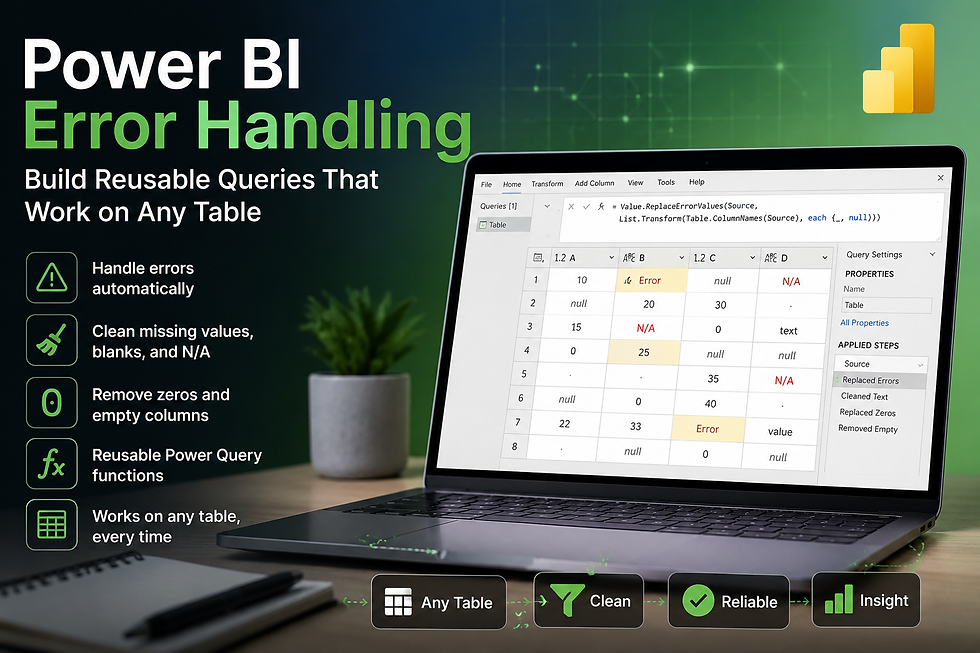
The first step with any incoming table is to eliminate structural errors — cells that Power Query displays as [Error]. The most efficient and scalable approach is Value.ReplaceErrorValues, which replaces errors in any number of columns in a single step.
Value.ReplaceErrorValues(
    Source,
    List.Transform(Table.ColumnNames(Source), each {_, null})
)
What it does: List.Transform loops through every column name in the table and builds a replacement list. Every cell-level error is replaced with null. Because it uses Table.ColumnNames dynamically, this works on any table — no matter how many columns it has or how they are named.
Why null and not zero: Replacing errors with null is safer than replacing with 0. A null is visible and can be handled downstream based on context. A 0 in a revenue column silently participates in totals and averages, which is harder to detect later.
Good to Know: Value.ReplaceErrorValues targets individual cell-level errors only. If an entire query step fails — for example, when a source file is missing — you need to wrap that step itself in a try...otherwise block at the step level.
Step 2: Create the Core Reusable Function — fnCleanValue
Now create a new blank query and name it fnCleanValue. This is the heart of the pipeline. It accepts any value and a fallback, then returns either the clean original or the fallback if the value is null, blank, or matches a recognized N/A pattern.
(val as any, fallback as any) as any =>
    let
        Safe    = try val otherwise fallback,
        IsNull  = Safe = null,
        IsBlank = try (Safe = "") otherwise false,
        IsNA    = try (Text.Upper(Text.Trim(Text.From(Safe))) = "N/A")
                  otherwise false,
        Result  = if IsNull or IsBlank or IsNA then fallback else Safe
    in
        Result
What it does: try val otherwise fallback on the first line catches any runtime error before the checks begin. IsBlank and IsNA are each wrapped in their own try...otherwise false to protect against type mismatch errors. The Text.Upper(Text.Trim(...)) approach means "N/A", "n/a", " N/A ", and "#N/A" are all caught by the same condition.
Where to save it: Create this as a standalone blank query in your Power BI file. Once saved under the name fnCleanValue, it becomes available to every other query in the same model.
Pro Tip: Extend the IsNA condition to cover your organization's specific placeholders. If your system exports "-", "none", or "missing" as null equivalents, add them to the same condition chain. You only need to maintain this in one place.
Step 3: Apply fnCleanValue Across Your Columns
With fnCleanValue saved, apply it using Table.TransformColumns. Specify which columns to clean and set the appropriate fallback for each:
Table.TransformColumns(
    Source,
    {
        {"Revenue",  each fnCleanValue(_, 0),           type number},
        {"Quantity", each fnCleanValue(_, 0),           type number},
        {"Region",   each fnCleanValue(_, "Unknown"),   type text},
        {"Status",   each fnCleanValue(_, "Pending"),   type text},
        {"OrderID",  each fnCleanValue(_, "NO-ID"),     type text}
    }
)
What it does: For each listed column, fnCleanValue is called with the cell value (_) and a column-appropriate fallback. The result is typed explicitly, which prevents Power Query from defaulting to any and avoids downstream type errors in the model.
Common mistake: Using the same fallback for every column without considering its role. Replacing a missing revenue figure with 0 is correct for sum calculations. Replacing a missing product category with 0 is not — use a meaningful text placeholder like "Unknown" or "Uncategorized" instead.
Step 4: Remove Fully Empty Columns Dynamically
Source exports often include columns that are entirely empty — artifacts of templates, retired fields, or system placeholders. These add noise, slow loading, and can confuse automatic type detection. Remove them without hardcoding any column names:
let
    AllCols    = Table.ColumnNames(Source),
    ActiveCols = List.Select(
        AllCols,
        each not List.IsEmpty(
            List.RemoveNulls(Table.Column(Source, _))
        )
    )
in
    Table.SelectColumns(Source, ActiveCols)
What it does: For each column, it strips out nulls and checks whether anything remains. If the column is entirely null, it is excluded from the result. The logic is fully dynamic — it adapts automatically when the upstream schema gains or loses columns.
Step 5: Combine Everything Into One Master Cleaning Query
Now connect all steps into a single readable query. Replace YourSourceQuery with your actual source step name, and adjust the column list to match your table:
let
    Source = YourSourceQuery,

    // Step 1 – Replace all structural cell errors with null
    Step1_NoErrors = Value.ReplaceErrorValues(
        Source,
        List.Transform(Table.ColumnNames(Source), each {_, null})
    ),

    // Step 2 – Remove columns that are entirely empty
    AllCols    = Table.ColumnNames(Step1_NoErrors),
    ActiveCols = List.Select(
        AllCols,
        each not List.IsEmpty(
            List.RemoveNulls(Table.Column(Step1_NoErrors, _))
        )
    ),
    Step2_NoEmptyCols = Table.SelectColumns(Step1_NoErrors, ActiveCols),

    // Step 3 – Clean known columns using the reusable helper function
    Step3_CleanValues = Table.TransformColumns(
        Step2_NoEmptyCols,
        {
            {"Revenue",  each fnCleanValue(_, 0),         type number},
            {"Quantity", each fnCleanValue(_, 0),         type number},
            {"Region",   each fnCleanValue(_, "Unknown"), type text},
            {"Status",   each fnCleanValue(_, "Pending"), type text}
        }
    )

in
    Step3_CleanValues
This three-step pipeline is designed to be portable. Copy it to a new query, swap the source reference and column list, and the same logic applies to a completely different table without rebuilding anything from scratch.
Practical Example: A Sales Export With Multiple Problems
Imagine a monthly sales CSV export with five columns: OrderID, Revenue, Quantity, Region, and Status. The export arrives with the following issues:
Several cells in Revenue show [Error] due to division-by-zero formulas applied before export in the source system.
Blank strings appear in Region where the sales rep did not fill in the territory field.
The Status column contains a mix of valid values and "N/A" entries from an older order entry form.
Two columns labelled Spare_Col_A and Spare_Col_B are entirely empty — left over from a reporting template.
Applying the master cleaning pipeline handles all four problems in a single, readable query. After Step 1, all [Error] cells in Revenue become null. After Step 2, Spare_Col_A and Spare_Col_B are automatically removed. After Step 3, null values in Revenue and Quantity become 0, blank Region entries become "Unknown", and all "N/A" Status values become "Pending". The resulting table loads cleanly into the model, and next month's export will be processed identically — no manual adjustments required.
Bonus Tips and Common Mistakes
Do not confuse Table.ReplaceErrors with Value.ReplaceErrorValues. Table.ReplaceErrors requires you to name each column explicitly. The Value.ReplaceErrorValues pattern with List.Transform and Table.ColumnNames scales automatically and is the better default for production models.
Name your helper functions clearly and consistently. fnCleanValue, fnRemoveEmptyColumns, and fnNormalizeText are immediately understandable to anyone inheriting the file. Vague names like Query1 slow down maintenance and knowledge transfer.
Watch out for mixed-type columns. A column that sometimes contains numbers and sometimes contains "N/A" text will be typed as any by Power Query. Always set the output type explicitly in Table.TransformColumns to avoid silent type mismatches in the model.
Choose fallback values intentionally. Replacing all missing numerics with 0 can distort averages, ratios, and percentage calculations. In analytical columns, replacing with null is often safer. Use 0 only for additive columns where a missing value genuinely means nothing happened.
Test your functions on a fresh table. Include a row with "#N/A", one with just whitespace, and one with a genuine zero to confirm each case is handled as intended before deploying to a production refresh.
Final Thoughts
Reusable error handling is not a luxury reserved for large data teams. It is straightforward data hygiene for anyone who connects more than one source in Power BI. Building fnCleanValue once and pairing it with the dynamic Value.ReplaceErrorValues pattern and an automatic empty-column remover gives you a lightweight, reliable toolkit that works on any table — without rewriting logic for every new connection.
Start with the pipeline from Step 5, run it against one of your existing sources, and extend fnCleanValue to cover the specific placeholder values your data sources use. The setup takes under thirty minutes, and it pays back that time with every refresh, every schema change, and every new table your reports need to absorb.
For more practical Power BI and Power Query guides, visit the Power Query and Power BI categories on Excelized. If you need help auditing a data model, building a reliable refresh pipeline, or training your team on Power Query best practices, the services page is the natural next step.
👉 Want to build this yourself, live? Book a 1:1 Power BI Crash Course and learn it hands-on with me.


Comments