

Power BI General Options Explained: Parallel Loading, Memory Limits, and Refresh Settings That Actually Matter

Updated: Oct 3
Introduction
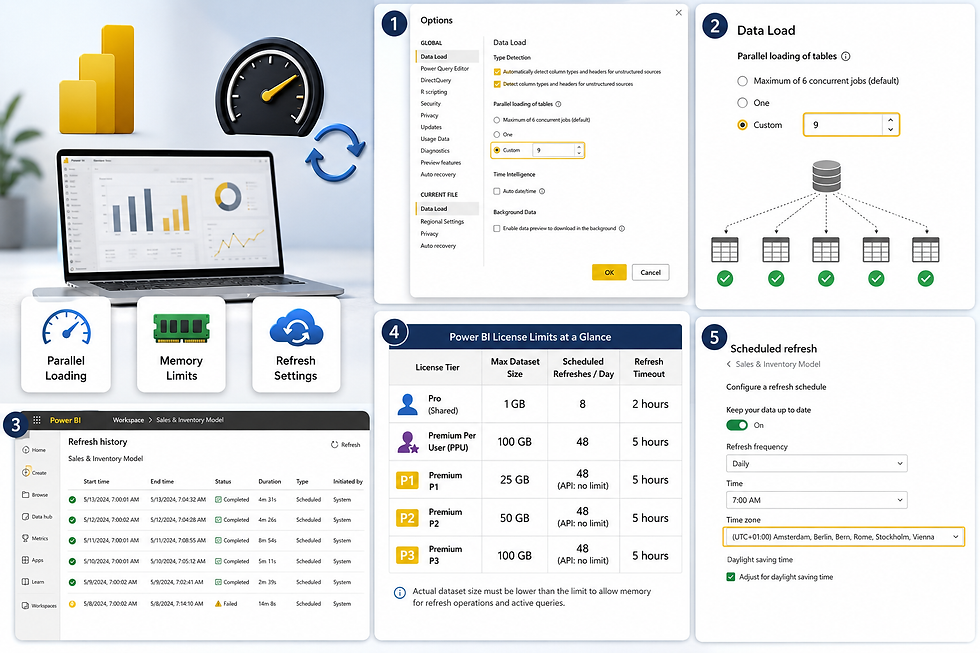
Most Power BI users publish their reports and hit Refresh — then wait and hope for the best. But a lot is happening behind the scenes, and a handful of settings in Power BI Desktop directly control how fast, stable, and memory-efficient that process is. This article walks you through the most impactful General and Data Load options — parallel loading of tables, memory limits across license tiers, and several other settings that are easy to miss but genuinely worth configuring.
Why These Settings Matter
Slow refreshes, timeout errors, and capacity memory failures are among the most frustrating day-to-day problems in Power BI. Many of them are preventable — or at least manageable — once you know which settings to adjust and why.
The good news is that most of these controls live in one place: the Options dialog in Power BI Desktop. They are often left at defaults after installation and rarely revisited. Taking a few minutes to review them before publishing a model can save significant troubleshooting time later — and make a visible difference in refresh duration and reliability.
Where to Find Power BI Options and Settings
Almost everything covered in this article is found here in Power BI Desktop:
File → Options and Settings → Options
Inside the Options dialog, settings are split into two sections:
Global — applies to every .pbix file you open on this machine
Current File — applies only to the file currently open
The most impactful refresh-related settings are found under the Data Load group in both sections. It is worth checking both, since some settings (like Auto date/time) appear in both places and can be configured independently.
Parallel Loading of Tables — What It Is and How to Configure It
What Is Parallel Loading?
When Power BI refreshes a dataset, it processes multiple query tables. With parallel loading enabled, it loads several tables simultaneously rather than one at a time. This is the default behavior, and for most models, it significantly reduces total refresh duration.
According to Microsoft's official documentation, the default maximum number of concurrent jobs is 6 — both in Power BI Desktop and in the Power BI Service on shared (Pro) capacity. This means up to six tables can refresh at the same time. If your dataset has more than six tables that each take a significant amount of time to refresh, and it lives in a Power BI Premium or Premium Per User workspace, you may be able to speed things up by increasing this number.
How to Change the Setting
The parallel loading setting lives under:
File → Options → Current File → Data Load → Parallel loading of tables
You have three options:
Default — Maximum of 6 concurrent jobs (standard behavior)
One — Disables parallelism — tables load one at a time
Custom — Enter any positive integer to set your own limit (e.g., 9 or 10)
Steps to configure:
Open your .pbix file in Power BI Desktop
Go to File → Options and Settings → Options
Under Current File, select Data Load
Locate Parallel loading of tables
Choose Custom and enter your desired number (e.g., 9 or 10)
Save and publish the updated .pbix to your Premium or PPU workspace
Trigger a refresh — the new setting will be applied
Good to Know: This setting works by setting the maxParallelism property in the refresh commands generated by Power BI. On shared (Pro) capacity, the maximum remains 6 regardless of any custom value you enter. The increase only takes effect in Premium or PPU workspaces.
There is also a Global-level version of this setting under Global → Data Load. The global setting controls how many containers Power BI Desktop uses locally when previewing Power Query queries — it does not affect the cloud refresh behavior.
When to Increase vs. Decrease Parallelism
Increase parallelism when:
You have more than 6 tables that each take meaningful time to refresh
Your workspace is Premium or PPU
Tables pull data from different sources (no connection contention)
Decrease parallelism (or set to One) when:
All tables query the same source database — parallel connections can overwhelm it and cause timeout errors
You see connection-related refresh failures
Your data source has strict concurrency restrictions
Pro Tip: In a documented test, increasing the parallel loading setting from the default 6 to 9 on a PPU workspace reduced a 44-second refresh to 29 seconds — approximately one-third faster — with no other model changes required. All nine tables refreshed simultaneously instead of in batches of six.
Memory Limits — Pro vs. PPU vs. Premium
Understanding your license's memory limit is essential, especially for growing datasets. Hitting this limit during a refresh produces errors like: "Resource Governing: This operation was canceled because there wasn't enough memory to finish running it."
The Max memory column in Microsoft's SKU table represents an upper bound for the semantic model size. However, an amount of memory must be reserved for operations such as refreshes and queries on the semantic model — meaning the maximum semantic model size permitted on a capacity might be smaller than the documented number.
Here is a practical summary of the key limits, based on current official Microsoft documentation:
Power BI Pro (Shared): Max Dataset Size 1 GB | 8 scheduled refreshes/day | 2-hour timeout
Premium Per User (PPU): Max Dataset Size 100 GB | 48 refreshes/day | 5-hour timeout
Premium P1: Max Dataset Size 25 GB | 48 refreshes/day (API: no fixed limit) | 5-hour timeout
Premium P2: Max Dataset Size 50 GB | 48 refreshes/day (API: no fixed limit) | 5-hour timeout
Premium P3: Max Dataset Size 100 GB | 48 refreshes/day (API: no fixed limit) | 5-hour timeout
Why refresh memory is higher than dataset size: The refresh operation causes the memory used by the semantic model to more than double, because in addition to the memory used by the refresh operation itself, the original copy of data remains available for active queries while another copy is being processed. Once the refresh transaction commits, the memory footprint is reduced.
In practice, this means a 10 GB dataset on a P1 capacity (25 GB limit) can fail if users are actively querying the model during refresh — because the combined memory demand of the old data, the new data being loaded, and active DAX queries can exceed available capacity.
How to reduce refresh memory pressure:
Enable Incremental Refresh to process only new or changed rows instead of the full table. Table data is filtered using Power Query parameters named RangeStart and RangeEnd, so only a small period of data is loaded per refresh cycle.
Schedule refreshes during off-peak hours to avoid memory competition with active report users.
Use the Enhanced Refresh API with partition-level processing for very large models.
Other Useful General Settings Worth Reviewing
Auto Date/Time
Location: Global → Data Load → Time Intelligence → Auto date/time (also available under Current File)
When enabled, Power BI automatically generates a hidden date table for every date column in your model. This is helpful for beginners using built-in time intelligence, but it adds overhead to models with multiple date columns — increasing model size and slowing down initial load.
Recommendation: Disable Auto date/time for production models where you already manage your own date table. The setting can be turned off at the Global level so it does not activate in future files.
Background Data Preview Download
Location: Global → Data Load → Enable data preview to download in the background
This setting controls whether Power BI triggers queries in the background to populate Power Query previews while you work. For slow or rate-limited sources, this can create unnecessary load on your data source.
Recommendation: Disable this during development if your source is slow, expensive to query, or rate-limited. Re-enable it when you need active preview feedback while shaping queries.
Data Cache Management
Location: Global → Data Load → Data cache management options
Power BI Desktop keeps a local cache of query results to speed up previews. Over time, this cache can grow large and contribute to sluggish Desktop performance. From this panel, you can clear the cache and increase its size limit. If Power BI Desktop feels slow or shows stale preview data, clearing the cache here is often the first thing to try — and it takes only a few seconds.
Refresh Time Zone
Location: Power BI Service → Semantic Model Settings → Scheduled Refresh → Time zone
By default, the current date and time is determined based on Coordinated Universal Time (UTC) at the time of refresh. For on-demand, scheduled, and REST API refreshes, you can configure a different time zone under Refresh settings in the Power BI Service.
Recommendation: If your data uses local timestamps — for example, a midnight close based on Central European Time — a UTC mismatch can cause incomplete or incorrect refresh results, especially with Incremental Refresh policies. Set the refresh time zone to match your data source's time zone.
Bonus Tips and Common Mistakes
Do not set Custom parallelism too high for a single source. Ten tables hitting the same SQL database in parallel can cause timeouts or connection pool exhaustion. Start with 3–4 when all tables share one source.
Check Refresh History regularly. In the Power BI Service, go to your semantic model → More options → Refresh History. Duration, status, and error codes are all logged there.
Memory errors during refresh do not always mean the model is too large. The refresh temporarily requires more than double the dataset size in memory. A 10 GB model on a 25 GB capacity can fail — plan accordingly.
Pro license users cannot increase parallelism beyond 6. Even if Custom is set in Desktop, the shared capacity service enforces the 6-job ceiling.
Disabling Q&A (Global → Q&A → Turn on Q&A) removes the auto-generated linguistic schema if you are not using the Q&A visual. Small optimization, but it reduces unnecessary processing during publish.
Data refreshes on shared capacity must complete in less than two hours. If your refresh regularly runs close to this limit, consider Incremental Refresh or moving to a Premium or PPU workspace.
Final Thoughts
The Options dialog in Power BI Desktop is one of those places most users open once and never revisit. But a few targeted changes — especially parallel loading configuration and a clear understanding of your license's memory limits — can make a real and measurable difference in how your refreshes perform.
Start with your current file's parallel loading setting, check your Auto date/time, and review your refresh time zone in the service. These are low-effort, high-impact changes that apply immediately the next time your dataset refreshes.
Subscribe for more Power BI and Excel tips — or explore the related tutorials below.
👉 Want to build this yourself, live? Book a 1:1 Power BI Crash Course and learn it hands-on with me.
Get help with your reporting setup
Need help investigating a slow report or refresh? Explore performance troubleshooting and guided improvements for your Power BI setup.



Comments